
SMTP Server
Catch-all SMTP server for testing email functionality in development.
SMTP Server
Yasumu includes a built-in catch-all SMTP server that captures all emails sent to it, providing a local mailbox for testing email functionality during development. No more sending test emails to real addresses or setting up complex email infrastructure.
Overview
The SMTP server:
- Captures all emails — Acts as a real SMTP server that accepts any email
- Stores locally — Emails are stored in your workspace database
- Provides a mailbox — View, search, and manage received emails in Yasumu
- Works with any library — Compatible with Nodemailer, SendGrid SDK, or any SMTP-capable tool
Accessing the Mailbox
Navigate to Emails in the Yasumu sidebar to access the email features. You'll see two tabs:
| Tab | Description |
|---|---|
| Mailbox | View and read captured emails |
| Settings | Configure SMTP server port and authentication |
Mailbox Features
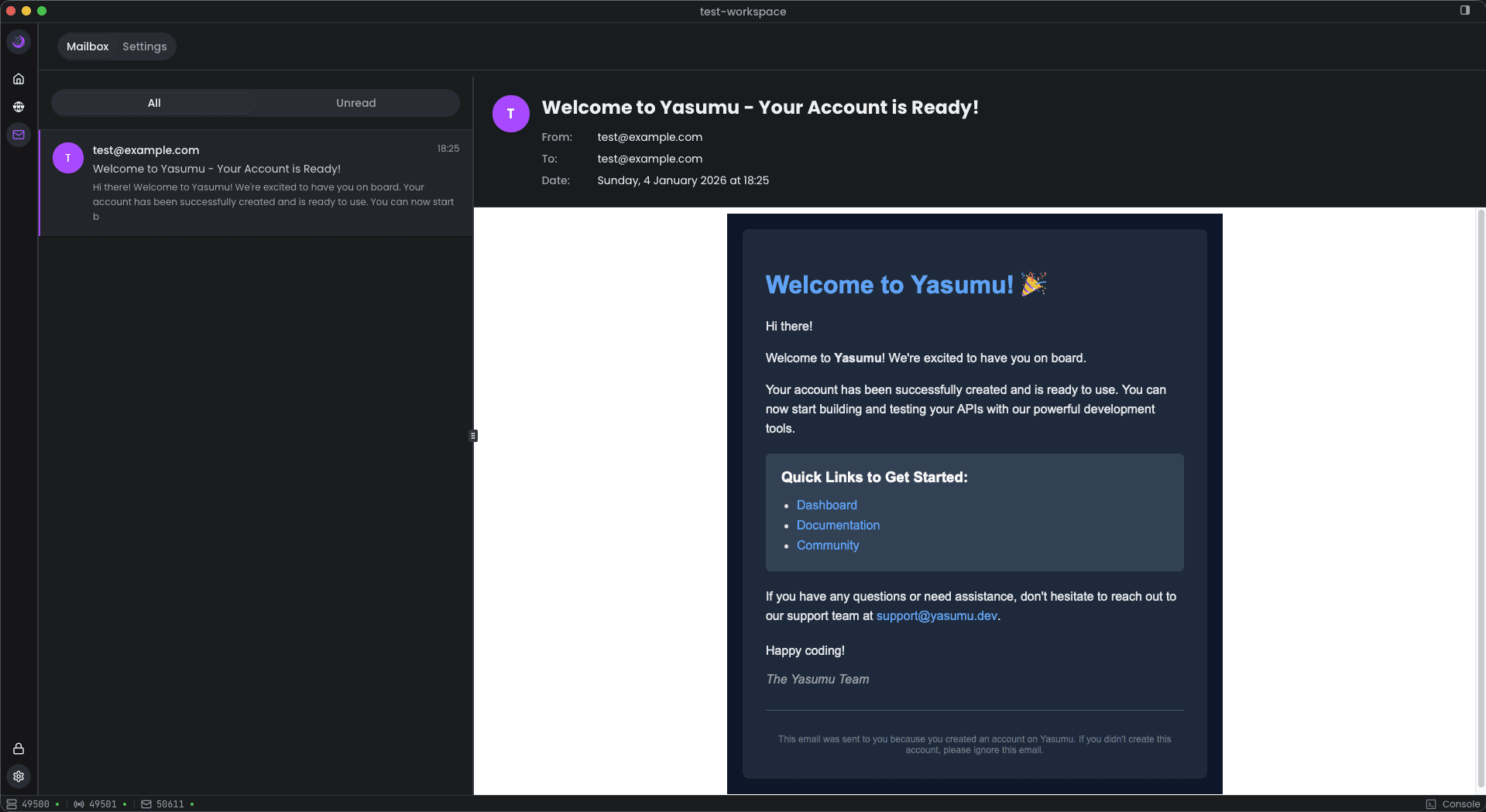
Email List
The mailbox displays all captured emails with:
- Sender avatar — Color-coded initials based on sender email
- From address — Who sent the email
- Subject line — Email subject (or "No subject" if empty)
- Preview — First 150 characters of the email body
- Timestamp — When the email was received
- Unread indicator — Blue dot for unread emails
Filtering
Filter emails by:
- All — Show all captured emails
- Unread — Show only unread emails
The unread count is displayed as a badge next to the filter.
Email Content
Click an email to view its full content:
- From/To/CC — Full email addresses
- Date — When the email was received
- Subject — Full subject line
- Body — Rendered HTML or plain text content
HTML emails are rendered in a sandboxed iframe for security.
Settings
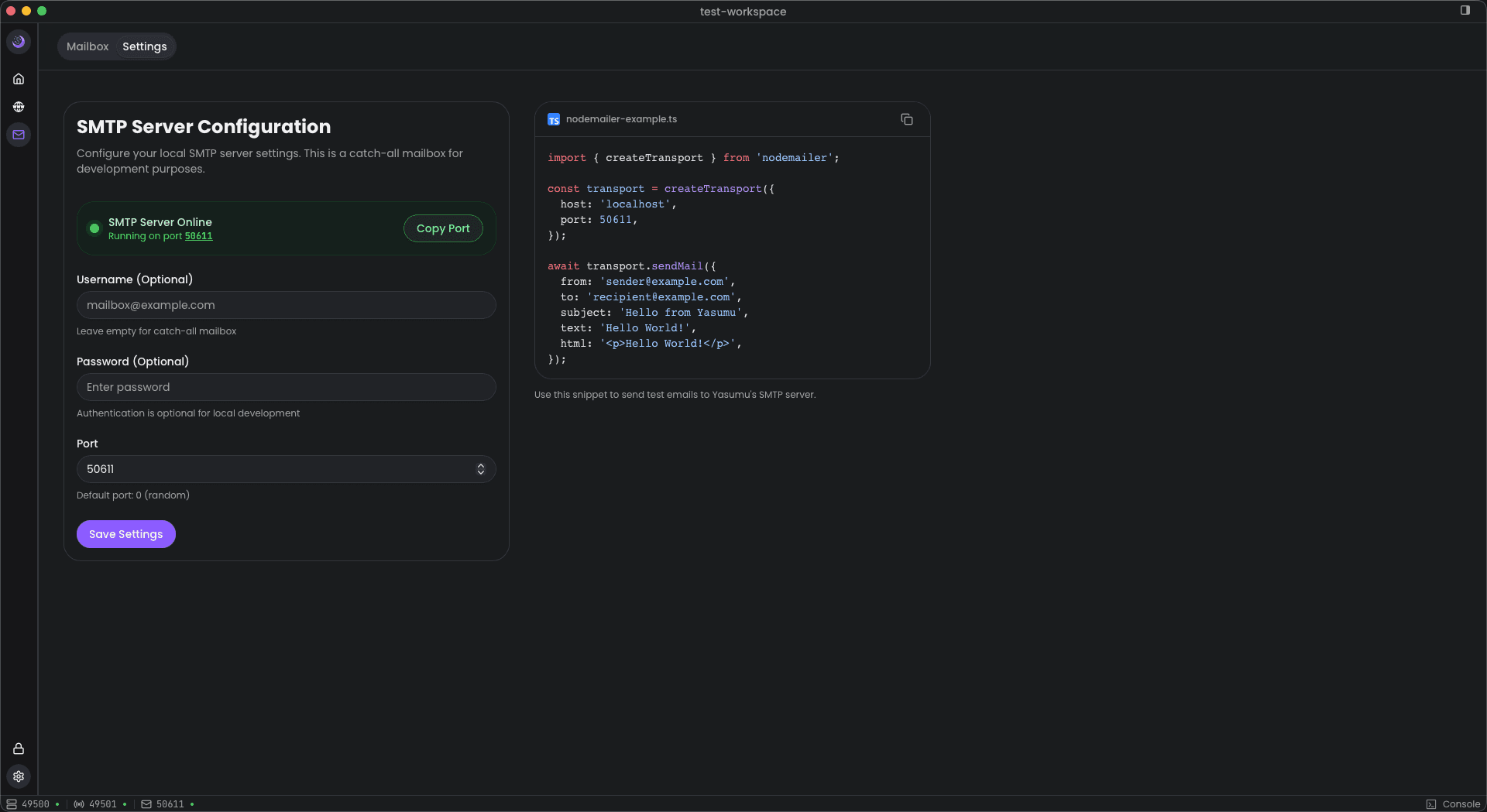
Server Status
When the SMTP server is running, you'll see a status indicator showing:
- Online status — Green indicator when active
- Active port — The port the server is listening on
- Copy Port — Quick button to copy the port number
Configuration Options
| Setting | Description |
|---|---|
| Username | Optional authentication username (leave empty for catch-all) |
| Password | Optional authentication password |
| Port | Server port (0 = random available port) |
After changing settings, click Save Settings to apply.
Using the SMTP Server
With Nodemailer
The settings page includes a ready-to-use code snippet:
import { createTransport } from 'nodemailer';

const transport = createTransport({
  host: 'localhost',
  port: 2525, // Use the port shown in Yasumu settings
});

await transport.sendMail({
  from: 'sender@example.com',
  to: 'recipient@example.com',
  subject: 'Hello from Yasumu',
  text: 'Hello World!',
});
With Other Libraries
Any SMTP-capable library can send to the Yasumu SMTP server:
Python (smtplib)
import smtplib
from email.message import EmailMessage

msg = EmailMessage()
msg['Subject'] = 'Test Email'
msg['From'] = 'sender@example.com'
msg['To'] = 'recipient@example.com'
msg.set_content('Hello from Python!')

with smtplib.SMTP('localhost', 2525) as smtp:
    smtp.send_message(msg)
Go (net/smtp)
package main

import (
    "net/smtp"
)

func main() {
    msg := []byte("Subject: Test Email\r\n\r\nHello from Go!")
    smtp.SendMail("localhost:2525", nil, "sender@example.com",
        []string{"recipient@example.com"}, msg)
}
Workspace Configuration
SMTP settings are stored in smtp.ysl in your workspace:
@smtp

metadata {
  id: "udlji8yaooo11ud8aetg3omr"
  port: 0
  username: null
  password: null
}

script {
  // smtp script (if any)
}| Field | Description |
|---|---|
id | Unique identifier for the SMTP configuration |
port | Configured port (0 = random) |
username | Authentication username (null = disabled) |
password | Authentication password (null = disabled) |
Simulating Rejections
The SMTP server can simulate email rejections for testing error
handling. Use email addresses starting with reject
(case-insensitive) to trigger a rejection:
// These will be rejected by the SMTP server
await transport.sendMail({
  from: 'reject@example.com', // Rejected - sender starts with "reject"
  to: 'user@example.com',
  subject: 'This will fail',
  text: 'Never delivered',
});

await transport.sendMail({
  from: 'sender@example.com',
  to: 'rejected@example.com', // Rejected - recipient starts with "reject"
  subject: 'This will also fail',
  text: 'Never delivered',
});
This is useful for testing:
- Error handling in your email sending code
- Retry logic
- User notifications when emails fail
Real-time Updates
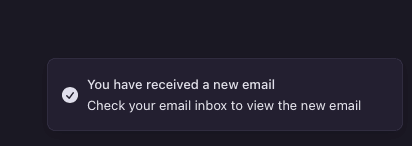
The mailbox automatically refreshes when new emails arrive. No need to manually refresh — emails appear in the list as soon as they're received.
Email Scripting
Yasumu provides a powerful scripting system for processing incoming emails automatically. Scripts can detect new emails, extract information, and store values in environment variables for use in your API requests.
Script Structure
Email scripts are written in the Script tab of the email section:
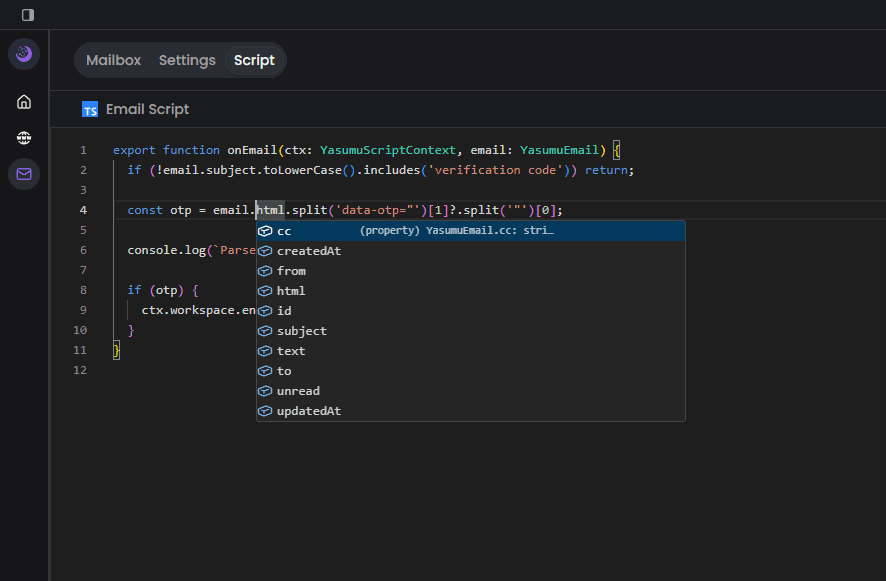
export function onEmail(
  ctx: YasumuScriptContext,
  email: YasumuEmail,
) {
  // Process incoming emails
  console.log('New email from:', email.from);
}
Email Event
The onEmail function is called every time a new email is received
by the SMTP server. Use conditional checks to filter which emails
your script processes.
The Email Object (email)
The email object represents the received email and contains all
message data.
| Property | Type | Description |
|---|---|---|
id | string | Unique identifier for the email |
from | string | Sender email address |
to | string | Recipient email address |
cc | string | CC recipients (if any) |
subject | string | Email subject line |
text | string | Plain text body content |
html | string | HTML body content |
unread | boolean | Whether the email is unread |
createdAt | string | Timestamp when email was received |
updatedAt | string | Timestamp when email was last updated |
The Context Object (ctx)
The ctx object provides access to workspace functionality.
| Property | Type | Description |
|---|---|---|
ctx.workspace.env | YasumuWorkspaceEnvironment | Access to environment variables |
Extracting OTP Codes
A common use case is extracting verification codes from emails:
export function onEmail(
  ctx: YasumuScriptContext,
  email: YasumuEmail,
) {
  // Only process verification emails
  if (!email.subject.toLowerCase().includes('verification code'))
    return;

  // Extract OTP from HTML content
  const otp = email.html.split('data-otp="')[1]?.split('"')[0];

  // log extracted OTP
  console.log(`Parsed OTP: ${otp}`);

  // save OTP to environment variable
  if (otp) {
    ctx.workspace.env.setVariable('VERIFICATION_CODE', otp);
  }
}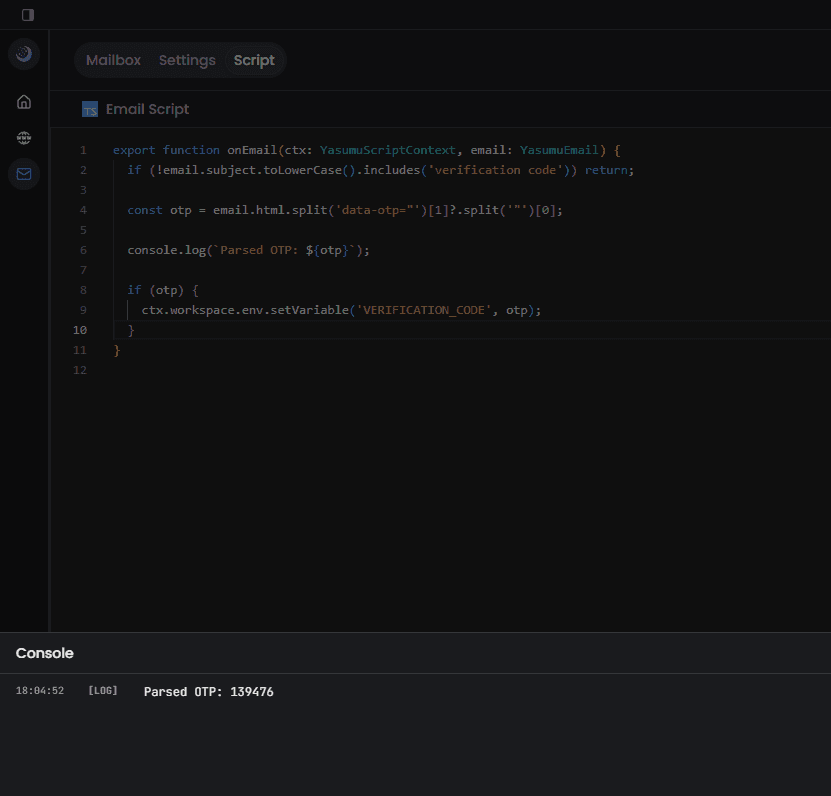
The extracted value is automatically saved to your environment:

Filtering Emails
Use conditional checks to process only relevant emails:
export function onEmail(
  ctx: YasumuScriptContext,
  email: YasumuEmail,
) {
  // Filter by subject
  if (!email.subject.includes('Order Confirmation')) return;

  // Filter by sender
  if (!email.from.endsWith('@mycompany.com')) return;

  // Process the email...
}
Extracting Data with Regex
For more complex extraction patterns, use regular expressions:
export function onEmail(
  ctx: YasumuScriptContext,
  email: YasumuEmail,
) {
  // Extract 6-digit OTP code
  const otpMatch = email.text.match(/\b(\d{6})\b/);
  if (otpMatch) {
    ctx.workspace.env.setVariable('OTP_CODE', otpMatch[1]);
  }

  // Extract order ID
  const orderMatch = email.text.match(/Order #(\w+)/i);
  if (orderMatch) {
    ctx.workspace.env.setVariable('ORDER_ID', orderMatch[1]);
  }

  // Extract links
  const linkMatch = email.html.match(/href="([^"]+verify[^"]+)"/);
  if (linkMatch) {
    ctx.workspace.env.setVariable('VERIFICATION_LINK', linkMatch[1]);
  }
}
Console Output
Use console.log() to debug your email scripts. Output appears in the
Console section at the bottom of the screen:
export function onEmail(
  ctx: YasumuScriptContext,
  email: YasumuEmail,
) {
  console.log('Email received:', email.subject);
  console.log('From:', email.from);
  console.log('To:', email.to);

  // Log extracted data
  const data = extractData(email);
  console.log('Extracted:', data);
}
Common Use Cases
Password Reset Flow
export function onEmail(
  ctx: YasumuScriptContext,
  email: YasumuEmail,
) {
  if (!email.subject.toLowerCase().includes('password reset')) return;

  // Extract reset token from link
  const tokenMatch = email.html.match(
    /reset-password\?token=([^"&]+)/,
  );
  if (tokenMatch) {
    ctx.workspace.env.setVariable('RESET_TOKEN', tokenMatch[1]);
    console.log('Password reset token saved');
  }
}
Email Verification
export function onEmail(
  ctx: YasumuScriptContext,
  email: YasumuEmail,
) {
  if (!email.subject.toLowerCase().includes('verify your email'))
    return;

  // Extract verification link
  const linkMatch = email.html.match(/href="([^"]*verify[^"]*)"/i);
  if (linkMatch) {
    ctx.workspace.env.setVariable('VERIFY_URL', linkMatch[1]);
    console.log('Verification URL saved');
  }
}
Two-Factor Authentication
export function onEmail(
  ctx: YasumuScriptContext,
  email: YasumuEmail,
) {
  if (
    !email.subject.toLowerCase().includes('2fa') &&
    !email.subject.toLowerCase().includes('two-factor')
  )
    return;

  // Extract 6-digit code
  const codeMatch = email.text.match(/\b(\d{6})\b/);
  if (codeMatch) {
    ctx.workspace.env.setVariable('2FA_CODE', codeMatch[1]);
    console.log('2FA code saved:', codeMatch[1]);
  }
}
Best Practices for Email Scripts
- Filter early — Return early if the email doesn't match your criteria
- Use specific patterns — Be precise with regex to avoid false matches
- Handle missing data — Check if extracted values exist before saving
- Log for debugging — Use console.log to trace script execution
- Keep scripts focused — Each script should handle one type of email
Chaining with API Requests
Variables set via email scripts can be used immediately in your API
requests using the {{ VARIABLE_NAME }} syntax. This enables
automated testing of email-based authentication flows.
Use Cases
Testing Transactional Emails
await sendPasswordResetEmail(user.email);
// Check Yasumu mailbox to verify email content and formatting
Testing Email Templates
Send emails with different templates to verify:
- HTML rendering
- Dynamic content substitution
- Responsive layouts
Testing Email Workflows
Test multi-step email flows:
- Welcome emails
- Verification emails
- Notification chains
Test environment
Configure your test environment to use Yasumu's SMTP server:
SMTP_HOST=localhost
SMTP_PORT=2525
Best Practices
- Use port 0 for random — Avoids conflicts with other services
- Check the active port — The displayed port is what the server is actually using
- No auth for local dev — Skip username/password for simpler local testing
- Use auth for shared environments — Add credentials if multiple people access the same instance
- Clear old emails periodically — Keep the mailbox manageable for performance