
Getting Started
Install Yasumu and set up your first workspace in minutes.
Getting Started
This guide will walk you through installing Yasumu and creating your first API workspace.
System Requirements
Yasumu runs on:
- Windows 10/11 (x64)
- macOS 11+ (Intel & Apple Silicon)
- Linux (x64, AppImage/deb)
Installation
Download Yasumu
Visit the official download page to get the latest installer for your operating system:
Choose the appropriate version:
- Windows:
.exeor.msiinstaller - macOS:
.dmgdisk image - Linux:
.AppImageor.debpackage
Install the Application
Run the downloaded installer and follow the on-screen instructions:
- Windows: Double-click the installer and follow the setup wizard.
- macOS: Open the
.dmgand drag Yasumu to your Applications folder. - Linux: Make the AppImage executable (
chmod +x) or install the.debpackage.
Launch Yasumu
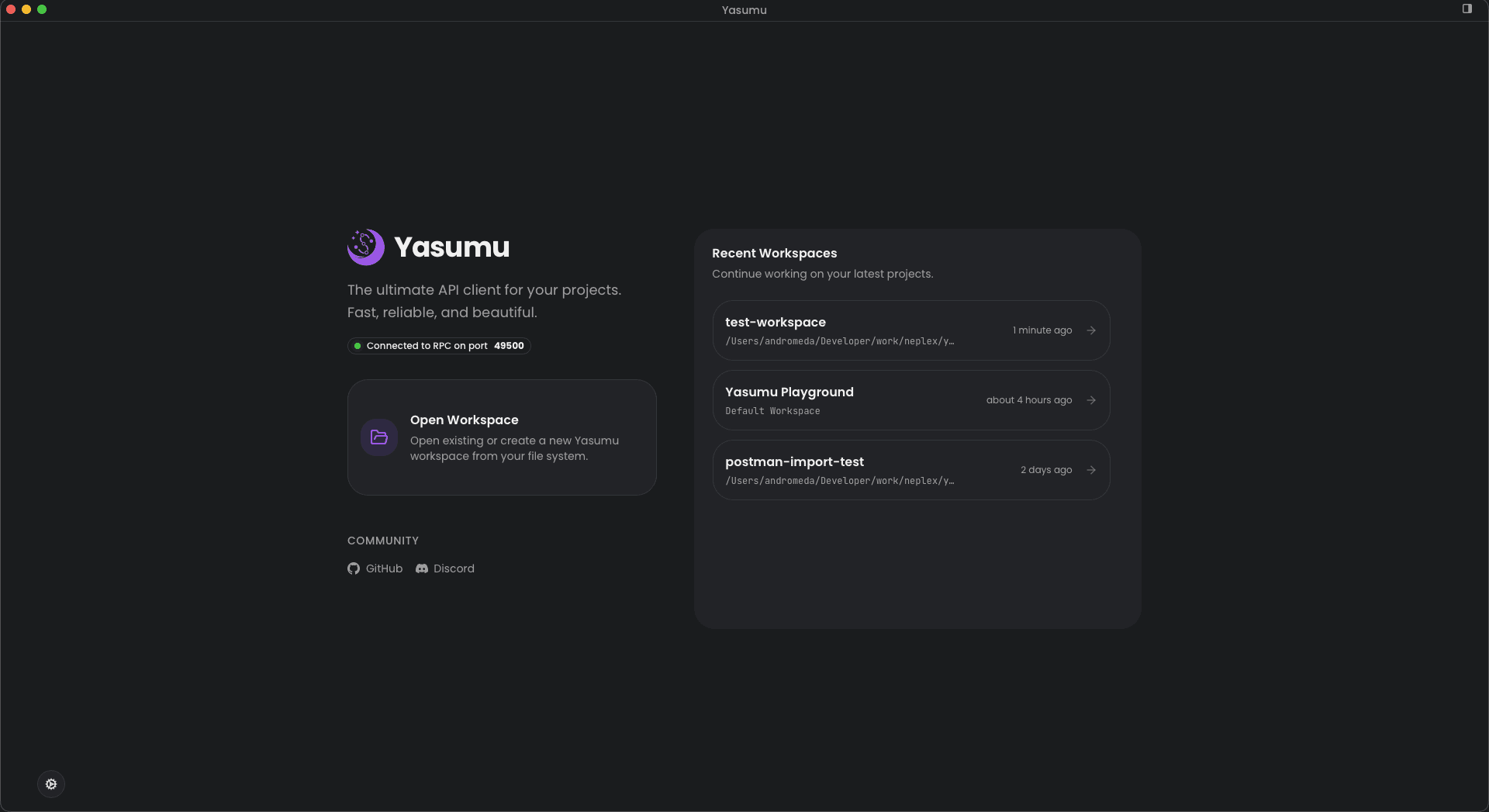
Open Yasumu from your applications menu or desktop. On first launch, you'll be greeted with the workspace selection screen.
Creating Your First Workspace
A workspace in Yasumu is a project folder that contains all your API definitions, environments, and configurations.
Open or Create a Workspace
When you launch Yasumu, you can either:
- Open an existing folder containing a Yasumu workspace
- Create a new workspace in any directory
Workspace Initialization
When you open a folder, Yasumu creates a yasumu directory
containing:
your-project/
└── yasumu/
    ├── workspace.ysl
    ├── environment/
    ├── rest/
    ├── smtp.ysl
    └── yasumu-lock.json
Create Your First Request
- Navigate to the REST section in the sidebar
- Click the + button to create a new request
- Enter a URL (e.g.,
https://jsonplaceholder.typicode.com/posts/1) - Click Send to execute the request
You'll see the response displayed in the response panel, including headers, body, and timing information.
Workspace Structure
Yasumu uses a file-based structure that integrates naturally with version control:
yasumu/
├── workspace.ysl           # Main workspace configuration
├── environment/
│   ├── <id>.ysl           # Environment definitions
│   └── <id>.ysl
├── rest/
│   ├── <id>.ysl           # REST API requests
│   └── <id>.ysl
├── smtp.ysl               # SMTP configuration
└── yasumu-lock.json       # Lock file for sync
The .ysl Format
Yasumu uses Yasumu Schema Language (.ysl) — a human-readable
format designed for:
- Version control — Easy to diff and merge
- Readability — Understand request configurations at a glance
- Stability — Consistent structure across versions
Files are named with unique IDs, while human-readable names are stored inside each file.
Next Steps
Now that you have Yasumu installed, explore:
- Workspaces — Learn about workspace organization
- Requests — Master HTTP request configuration
- Environments — Manage variables across environments
- Echo Server — Test requests with the built-in echo server